Preparing a PowerPoint Slide Show
From E-mailed Pictures
For Presentation by Carl Tenning at the
“Tacoma Open Group for Microcomputers” Meeting July 14, 2008
Frequently we get e-mails circulating the internet that contain interesting pictures along with some text describing the pictures. If it’s something we’d like to save, one convenient way of doing so would be to put them into a PowerPoint slide show.
Here are the steps we’ll show for organizing and preparing a PowerPoint slide show from e-mailed pictures:
(1) Create a working folder for holding the pictures and text from the e-mail.
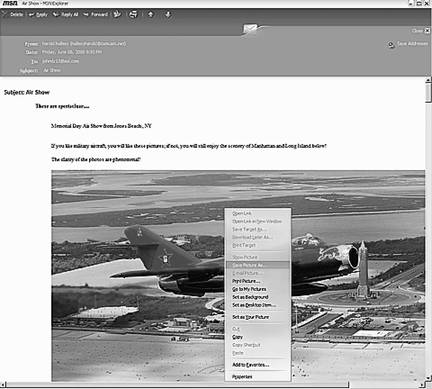
(2) Copy the pictures in the e-mail to the working folder. To do this, right click on the picture and select “Save Picture As”.
(3) Create a text file using Notepad, for storing the text descriptions within the e-mail. Creating this file is optional, but makes the pasting of text into the PowerPoint presentation more convenient. Just select the text in the e-mail and copy it to the Notepad file.
(4) Use an image editor, such as CompuPic to resize the pictures as necessary. The maximum size for pasting into a PowerPoint slide is about 800 x 600 pixels. This step is optional because pictures can also be resized within PowerPoint, but resizing them beforehand is more convenient and, I think, produces a better image. Images can also be sharpened using CompuPic, which enhances the image.
(5) Create a Title slide giving the subject of the presentation.
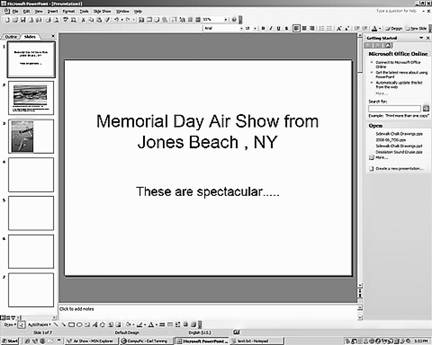
(6) Create additional blank slides as necessary and insert the pictures into each slide, usually one per slide.
(7) Paste the text for each slide beside its respective picture.

(8) Adjust the font, placement, and size of the text in the slides to suit your preference.
(9) Add backgrounds to the slides for a professional look.
(10) Finished