 Number 207 - August 2000 |
| Do The Right Thing | ||
|
by Gwen Shertel, at netforbeginners.about.com (This article pertains to PC users) | ||
|
I owned a computer for
two years before I did the right thing. It probably would have taken me
much longer than that on my own, but I happened to be working with
someone else who had learned about doing the right thing the month
before. He was kind enough to show me. Funny thing is, I hadn't even
questioned what the right thing was for before that fateful day, and now
I can't live without doing the right thing. Okay, enough about doing
the right thing -- is this some kind of spiritual computer journey, or a
coming of age lesson? Nah -- just a lesson about how to do the right
thing -- with your computer mouse!
You've probably noticed that your computer mouse has two buttons -- the one on the left (left mouse button) that you click all the time with your pointer finger, and another one next to it on the right (right mouse button). Did you know, however, that your right mouse button can quickly and easily provide menus of as-needed options as you are surfing the Web? Take a look:  Let's say you were looking for a particular piece of
clipart for a newsletter you were writing, and you came across this
image on a free clipart site. How do you get that skunk saved on your
computer so that you can insert it into your newsletter?
Let's say you were looking for a particular piece of
clipart for a newsletter you were writing, and you came across this
image on a free clipart site. How do you get that skunk saved on your
computer so that you can insert it into your newsletter?
Right click! That's right, point your mouse to the image, and click the right mouse button. 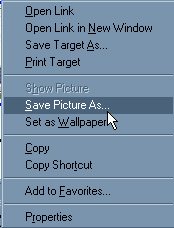
This is the menu that will appear when you right click on the skunk image in Internet Explorer. Wow; Look at all those choices! In this particular case, I want to save the image for later use, so I will choose "Save Picture As," and save it to a folder where I will be able to find it easily later on. Let's look at the menu that appears if you are using Netscape as your browser of choice: 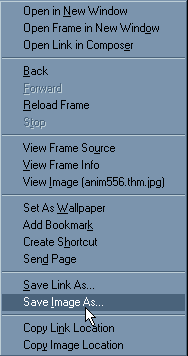
This is the menu that will appear when you right click on the skunk image in Netscape. As you can see, Netscape offers a few more choices. Just like in Internet Explorer, I want to save the skunk image for future use, so in this case I'll select "Save Image As". Same function, just different choice of words. Experiment with some of the other menu options that appear when you right click on an image. Remember -- it's virtually impossible to "break" your computer, so spend some time exploring these options! |
What else can you find
behind the right mouse button? Plenty! Let's take a look at what options
appear when you right click on the text of a Web site.
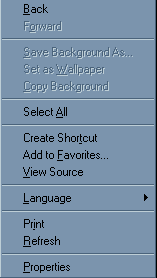
This is the menu that will appear when you right click on Web site text in Internet Explorer. Again, many choices! You may notice that some of the choices are already available as icons at the top of your Internet Explorer screen. The right click option simply gives you another quick and easy way to access these functions. Try these out and see what you uncover! 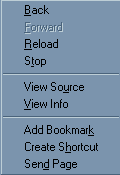
This is the menu that will appear when you right click on Web site text in Netscape. Netscape's "Send Page" option is extremely helpful. Want to send this article to a friend? Simply right click anywhere on the text, choose "Send Page," and an email window with the Web address of this page will be automatically configured for you -- pretty nifty, isn't it? There are many, many other options that are available with the right mouse button. Experiment and see what new tricks you can learn by doing the right thing! Note: The right mouse button is not only for use with browser software -- try it out with your other software programs as well!
|
|
|
Number 207 - August 2000
|


|
|