 Number 208 - September 2000 |
| Common Windows File Types | |
| by By James C. Smith - NOCCC, JamesCSmith@BigFoot.com - May 19, 2000 | |
|
Have you ever tried to
open a file and had Windows respond by opening the Open With dialog? The
Open With dialog says, Open With Click the program you want to use to
open the file and then lists every single program installed on your
computer. (See picture in side bar) What Windows is trying to tell you
is that it doesn't know how to open the file you clicked on. More
specifically, it doesn't know which program to use to open the document
you selected. Since Windows doesn't know what to do, it is asking you to
figure it out. This dialog would probably make you believe you are
supposed to find the proper program in the list, and once you find it,
everything will work. This is hardly ever the case. Usually when the
Open With dialog appears, it means you don't have the program you need
to open the document you are trying to open. You don't need to select
the right program from the Open With list. If you had the right program,
Windows would automatically know which program to use. Instead, what
you need to do is get the right program.
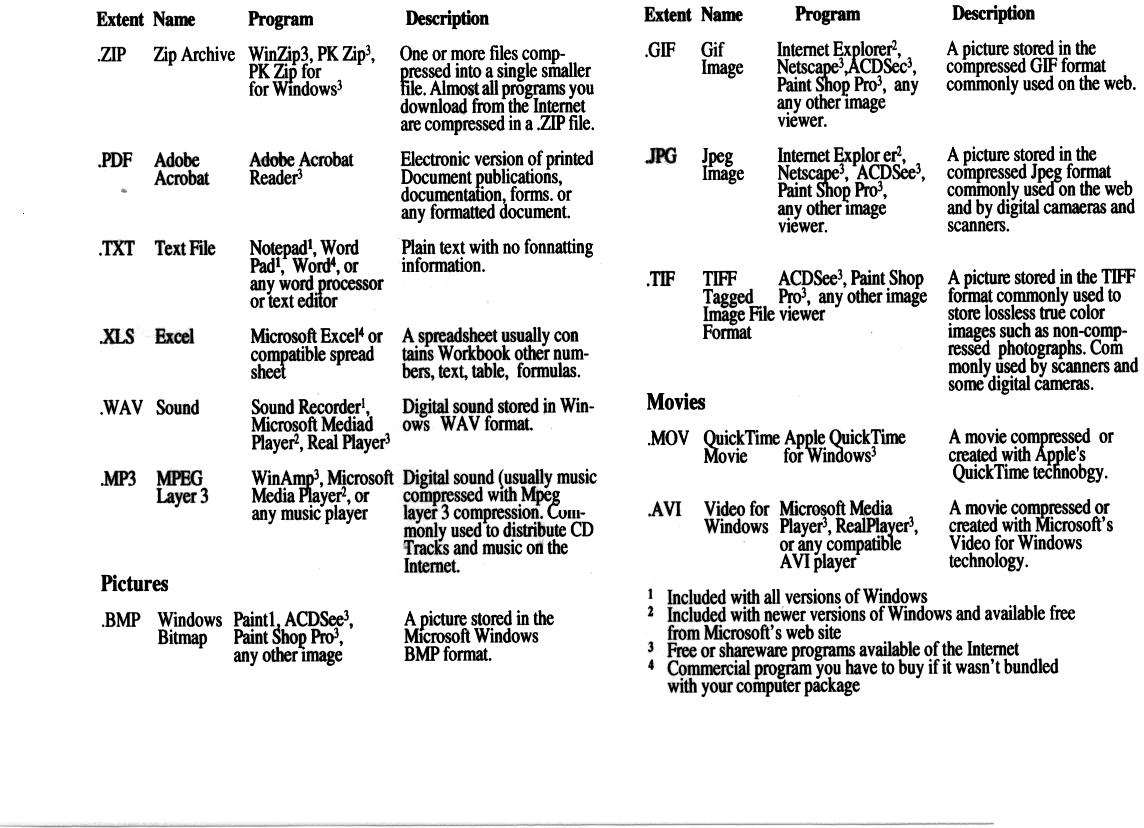
So how do you know what program to get? Windows (and DOS) use three letter extensions on file names to specify the type of the file. For example, text files have names that end with .TXT and executable program files have names that end with .EXE. Sometimes Windows hides these three letter extensions to try to be more user friendly. If you want to be able to figure out what is going on with your computer, you should configure Windows to always show the file extensions. To do this, double click on My Computer, pull down the View Menu and select Folder Options... In the Folder Options window, click on the View tab and then find the check box that says Hide file extensions for known file types. Make sure this box is not checked. Once you can see the 3 letter extension on files, you will be able to figure out what program you need to open a file. The table below lists some of the most common file types you will see when using Windows and the Internet. This is not a complete list, but it does have some of the most common file types. Windows knows about many of the common file types and comes with programs to view them. For example, windows can handle .TXT, .WAV, .BMP, and .AVI files without any extra programs. However, there are |
many very common file types that Windows
knows nothing about. Until you download and install a program, Windows
will not know how to open .ZIP, .PDF, or .GIF files. These are very
common files types that you will definitely encounter if you download
anything from the Internet. From the table below you can see that you
will be able to open these types of files after you install WinZip,
Adobe Acrobat Reader, and ACDSee.
If a file type isn't in this list, you can usually get some clue about what you need from the place where you got the file. If you download a file from a Web page, that page should tell you what kind of file it is and what program you can use to view it. If a friend sends a file as an e-mail attachment, ask your friend what type of file it is and what program you need to view it. If you know the file is an image or picture or graphic but the file type is not one listed here, you can probably use a good graphic viewing program to open the image. A program like ACDSee or Paint Show Pro can open just about any type of image file whether it is a .GIF, .BMP, .TIF, .TGA, .PCX, .IFF, .RLE, .WMF, .PNG, .PIC, or almost any other image file format. If you know the file is some kind of sound or music file you can probably open it with WinAmp3, Real Player3, or some other multimedia player. If you know it is some kind of video or movie you should try Microsoft Media Player2, Real Player3, or any multimedia player. Just about any kind of text document can be opened by Microsoft Word4, WordPerfect4, or another word processor. WordPad1 can open some simple text documents. Some of these programs are included in Windows. Most of the rest can be downloaded for free on the Internet. Just go to a popular download archive site like www.Download.com, www.WinFiles.com, or www.ZDNet.com/downloads/ and search for the program. Remember, when you see the Windows Open With dialog, it probably doesn't mean you need to make a selection in that dialog. It usually means you don't have the program you need. The good news is you don't have to go to the store and buy the right program. You probably just need to download a free utility program from the Internet. |
 |
Number 208 - September 2000


