 Number 223 - December 2001 |





|
| Organize & Protect Your Hard Drive | |
|
by Gene Barlow PowerQuest Rep via - NOOCC Orange Bytes September 2001 | |
|
Organize Your Hard Drive
Your hard drive is the only part of your computer system that you can customize to your personal needs. Using Partition Magic (by PowerQuest), you can organize your hard drive in many of the following ways. First, install a second hard drive on your system to improve performance and better protect your files. You can organize your system with only one hard drive, but a second drive will give you many more options. Second, convert all of your FAT partitions to FAT32 to maximize the use of your drive space. Third, keep your FAT32 partitions less than 8GB in size to avoid wasting disk space. Fourth, setup multiple partitions on each hard drive, keeping all primary partitions at the beginning of the first drive. Fifth, use primary partitions for operating systems and move all other files out of your primary c: partition, except the operating system's files. Sixth, setup a separate APPS logical partition to contain your application programs. Seventh, keep all of your important data files in a special DATA logical partition to better protect them from loss. Organizing in this manner will greatly improve your system over having all of your files in one c: partition. Run Multiple Operating Systems Running more than one Operating System on your computer will give you many of the following advantages. Again, Partition Magic and BootMagic will let you do this easily and safely. First, setup a second operating system to try out some of the exciting new systems, such as Linux or Windows 2000. Second, use multiple operating systems to migrate to a new version of your operating system safely. Don't risk losing your current stable operating system in order to move to a new release. Instead, setup a second primary partition and copy your current operating system into this new partition. |
Then install the new
release on top of the copy and not on your original system. Once you
have tested out the new version, you can easily delete the old operating
system.
Third, setup a new primary partition on your hard drive and install a fresh clean version of the operating system in it. Then install your most used applications in a separate APPS partition under this clean operating system. Download and install all of the patches for your operating system and applications. This clean system will run much more reliably than your old system with everything in it. Switch to the old system only for seldom-used applications or to test out new applications. Protect Your Hard Drive Hard drives are mechanical devices that are constantly in use on your system. As such, they eventually will fail and you'll lose your files. The best you can do is to frequently backup your files so that you can recreate your hard drive when it does fail. The following steps will let you better protect your hard drive from such failures. First, setup a backup partition on each of your hard drives. Hard drives are the best backup media to backup today's very large drives. Second, cross backup your entire hard drives each month using Drive Image, a full system backup utility. You'll create a condensed (50%) image of each of your partitions with all of their content, settings, and hidden files. This image can quickly be restored to recreate your partitions and their content. Once a quarter, copy these backup images to a CD-R/RW and store these in a remote location to protect against fire or theft. Third, your data files need to be backed up on a daily basis. Use DataKeeper to monitor your important data files and to back them up immediately and automatically when they change. This makes sure you always have a current backup of your data files without having to remember to do it. Setting up multiple partitions on your hard drive and protecting them with current backups using Drive Image and DataKeeper will let you recover your system in minutes instead of days or weeks of effort. 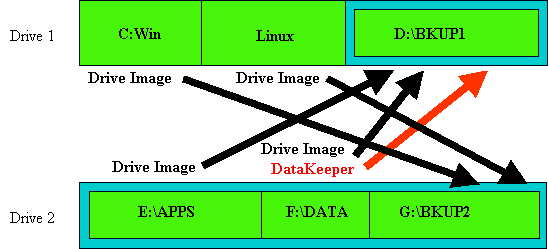
Gene Barlow is PowerQuest's premier salesman. |
|
Number 223 - December 2001
|
|