 Number 224 - January 2002 |





|
| Practicing the Black Art Close Program Dialog Box | |
| By Vinny La Bash, Sarasota Personal Computer Users Group | |
|
Students frequently call
me with some version of the following question: "When I hit
CTRL-ALT-Delete and bring up the Close Program Dialog Box, I see many
strange things and I don't know what they are or what they do. Do any of
these items slow my system down or adversely affect it in some other
way? If so, how do I close them without crashing the computer, freezing
it up, or causing it to restart and lose all my information in memory?"
The Close Program dialog box shows the programs that are currently running in your system's memory. Don't be surprised if you aren't familiar with many of them. 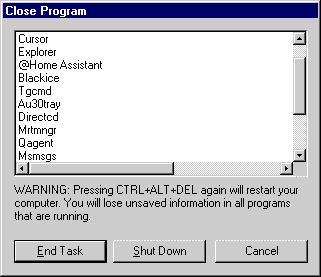
In the old days, before Windows 95, the keystroke sequence Control-Alt-Delete, or the "three-fingered salute", was used to reboot your system. Today it gives you access to the programs running on your machine. From the Close Program dialog box you can close any of the programs you see. (Figure 1) Just highlight the one you want and click the End Task button. Close as many programs as necessary, but you can close only one at a time. You also can shut down the entire computer by clicking the Shut Down button. The real purpose of this dialog box arises when a program misbehaves, or malfunctions in some way. Sometimes a Windows program will just stop working, while the rest of your PC carries on blissfully unaware that anything is awry. If you bring up the Close Program box, you'll likely see the words "Not responding" next to the name of the program. Your best bet is to close that program using the End Task button. You may get a secondary window that pops up asking whether you want to wait a bit longer or kill the program. Many items in the Close Program dialog box may seem meaningless. They are programs running in the background or components of Windows. For example, one is SYSTRAY. This stands for System Tray, the area on the far right of the Windows taskbar that contains the clock and miniature icons, such as the speaker. You are certain to see EXPLORER. This is neither Windows Explorer nor Internet Explorer. It represents the Desktop GUI and should not be shut down unless the Desktop is doing something weird. If you do this, however, any program icons that normally appear in the tray will disappear. You'll have to restart them in order to regain access to their capabilities. The easiest way to do this is to reboot the system. If you're running the Plus feature, look for SAGE or System Agent. Shutting this program down won't affect any essentials of Windows, but you may notice certain features have suddenly stopped working. When you bring up the Close Program dialog box, you will see Systray, Explorer, and possibly Sage. The first two are required system components and should be left alone. Sage should also be undisturbed unless you're performing system diagnostics. What about everything else in the list? Is there any way you can learn something about those items that by themselves provide no clue as to what they are or what they are doing? In a word, maybe. Let's examine one you may see called Imgicon. If this program is visible, open the Find function, and in the Find dialog box search on the C: drive for the file. One of the results should be: Imgicon.exe C:\Program Files\Iomega\Tools Doesn't Iomega manufacturer Zip drives? It turns out that this file is part of the driver system that comprises the interface between your PC and the Iomega drive. If you see Pop90, you'll find it's part of WordPerfect Office. Those using Microsoft Office are likely to see Osa, which is Office Startup Assistant. You may or may not have any of these programs, so let's examine how you might be able to discover what those other strange objects in your system really do. One of the programs in my list was a file called Au30Tray. Its name provided no hint of what its function might be. I started out by bringing up the Find tool, did a search, and got the following: Au30Tray C:/Windows. |
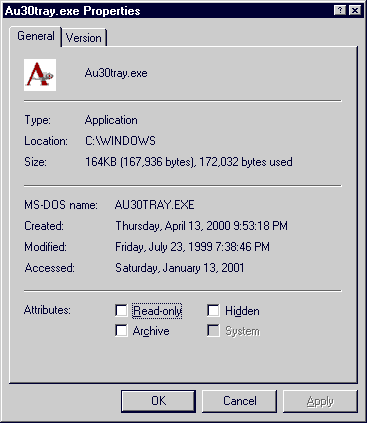
This wasn't much help beyond telling me where the program lived in my computer, so I opened the System Configuration tool by selecting Run from the Start menu and typed msconfig in the dialog box. Clicking the Start tab in the System Configuration dialog box revealed nothing. The program wasn't listed. Even though I didn't uncover any useful information, I never neglected the System Configuration Utility. It's a very useful tool even though it doesn't always tell you what you want to know. Right clicking on the file Au30Tray.exe brought up a menu. Figure 2 came up after selecting Properties. Notice the Icon directly underneath the General tab. Sometimes this icon is also the logo of the company that produced the file. I didn't recognize the logo. After reading the information on the screen I selected the Version tab and got Figure 3. 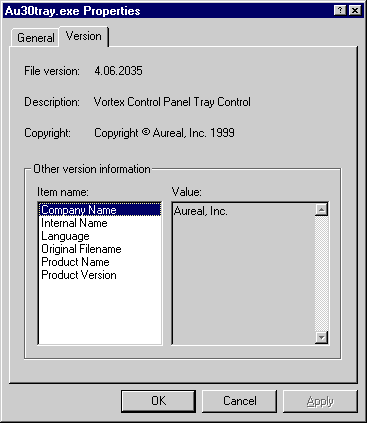
Now we're getting someplace. While I wasn't sure who the folks at Aureal, Inc. were, I was aware that Vortex manufactures great sound cards. Consulting my computer's user guide told me that my system has a Vortex sound card. From there it wasn't too difficult to determine that Au30Tray.exe was the primary device driver for my sound system. Some time later I read in one of the trade journals that Aureal had acquired Vortex in a takeover bid and that explained the apparent conflicting information in Figure 3. To summarize: Here are some of the things you can do to determine what the files in the Close Program dialog box are and what they do. None of these methods are foolproof and you may end up just as perplexed as when you started, but chances are good you will learn a lot more about those programs running in the background. You can contact Vinny La Bash at vlabash@home.com1 Copyright Sarasota Personal Computer Users Group. This article is from the February 2001 issue of the Sarasota PC Monitor, the official monthly publication of the Sarasota Personal Computer Users Group, Inc., P.O. Box 15889, Sarasota, FL 34277-1889. Permission to reprint is granted only to other non-profit computer user groups, provided proper credit is given to the author and our publication. We would appreciate receiving a copy of the publication the reprint appears in, please send to above address, Attn: Editor. For further information about our group, email: admin@spcug.org/ Web:www.spcug.org/ 1 After the ATT/Excite@home breakup in late November 2001 this address may now be vlabash@attbi.com -- we know our ISP changed from @home.com to @attbi.com so that would be a reasonable guess. We think it stands for AT&T Broadband Internet. |
|
Number 224 - January 2002
|
|