 Number 234 - October 2002 |





|
| How To REALLY Delete Files | |
| by Bob Thomson, Tacoma Open Group for Microcomputers | |
|
Q. I heard, or read somewhere, that
even though I have deleted a file from my hard disk, it is not really
deleted but can be recovered by a clever person or even by a neophyte
with the right tools. Is that true? If so, how can I really delete
sensitive personal and financial material from my hard drive?
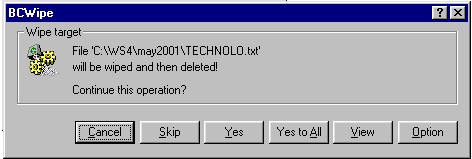
A. Your first statement is quite true. When you "Delete" a file what you are really doing is marking that filename for deletion which causes it NOT to be displayed in the disk directory. "Marking it for deletion" says to the operating system that if you are running short of storage space on the disk, it is OK to use the space occupied by the marked file to store something else. Let me explain without getting too technical (so I don't confuse myself). When a file, designated by a filename.ext, is saved to a disk, an addressable physical space on the disk is assigned (by the operating system) to hold or store that file, and the physical position of the start of that file on the disk is recorded in the Directory so you can find it in the future by simply entering or clicking its filename. When you use the Delete command to delete a file, you are simply marking that filename and address in the Directory as "deleted" thus indicating that the space occupied by the file can be released and used by other files. However, until that space is overwritten by another file, the original file is still there and can be recovered by file recovery commands or software designed for that purpose. In the olden days when we were saving files to floppy disks or even Megabyte-sized hard drives, because of limited disk space it was quite common that a file would be quickly overwritten, at least partly, making it virtually unrecoverable. But with today's gigabyte drives it is quite likely that old files, even though "Deleted" will still be there, intact, on such huge hard drives. This may present a problem when those files, which you thought you had deleted, contain sensitive personal, financial or other data to which you do not want other people to have access. To ensure that sensitive data is truly deleted, several software packages have been developed over the years. Among them is one called BCWIPE which is now incorporated in Windows 95, 98, ME, NT. If you display the files in a given folder, right clicking the mouse on a given file icon will yield a dropdown menu of options, (below), among them Delete and Delete with Wiping. 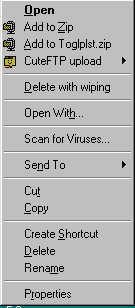
|
Clicking on Options allows you to choose:
1) Use Department of Defense (DoD) 7-pass wiping, or 2) User defined number of passes. This is already selected and set at 1 pass, but can be reset by you to do as many passes as you want, even exceeding 7. and to check boxes to: [x] Wipe of swap file, (normally checked) [ ] Wipe file slacks, and [x] Wipe empty directory entries (normally checked) 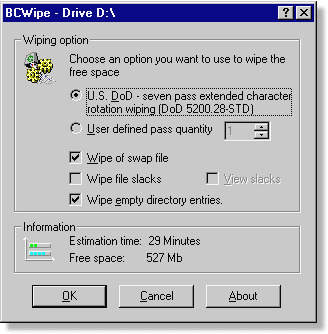
What does Wiping do? Wiping writes 1's and 0's and randomly generated characters (wiping by random) into the disk space previously occupied by the "sensitive" data, with the intention of filling the space with meaningless data, so that even if someone is smart enough (or nosy enough) to look in that space of your hard disk, they won't find anything meaningful. The US military have not been satisfied that one pass overwriting of the disk space was enough to obliterate militarily classified data. DoD practice is to overwrite the space seven times! For your purposes, you can leave it at the default value of 1 pass or you can set it at 3 passes, say, if you are nervous about what is in the files you are deleting with wiping. You should have realized by now that this procedure, while really deleting a file with wiping takes longer to do than a simple Delete command, and requires your individual attention to each file or folder wiped. Thus, this should be a selective process used only on those files which contain "sensitive" data. You can save some time by wiping the contents of an entire folder. That is, you could keep all your sensitive data in one or two folders and wipe them all with one command to delete the folders with wiping. For all "normal" files the regular Delete command should be fine. However, the operating system often writes backups and other navigating clues in not-so-obvious places all over the hard drive. While it is hoped that Deletion with wiping will take care of them too, it is likely that snippets may be left "ophaned" on the hard drive. Remember also that using the Delete command on programs that should be Uninstalled leaves a lot of junk on the disk, because deletling an .exe file, for example, does not delete all that program's supporting files. To clear out these items you may require the occasional use of disk and directory clean up utility programs. For utilities to take care of that chore see our librarian for a copy of the Summer 2002 CD. |
|
Number 234 - October 2002
|
|