 Number 235 - December 2002 |





|
| Why doesn't it work? | |
| by Brian K. Lewis, Ph.D.* Feb 2002 Sarasota PC Monitor newsletter of Sarasota Personal Computer Users Group, Inc. | |
|
Did you ever have a time
when you added something to your computer and it didn't work? It could
either be software, hardware or even a Windows upgrade. Yes, I've seen
many add-ons that don't work and it is usually because of some
fundamental conflict. Whenever you add new hardware or do a Windows
upgrade you frequently find that new drivers are needed. In order to
understand why this is so, we need to get an understanding of the basic
interaction of hardware and software in modern computers. So I will try
to gently lead you through to get a better understanding of the role of
the BIOS, drivers and the operating system (OS).
I suspect the place to start is with the BIOS. This stands for Basic Input/Output System. The BIOS is the link between the hardware and the software in your computer. Although you may think that all motherboards are alike, this isn't the case. In addition, there are different processors that can be attached to a motherboard. For example, consider the Intel processor line, which currently has several versions of Celeron, Pentium III and Pentium 4 processors. Then you also have the AMD processors. Your motherboard may also have a built-in sound card, video card or ethernet card. All of this hardware differs in many ways and requires a unique software connection in order to speak to the operating system. This software connection is the ROM BIOS. Each motherboard manufacturer modifies the BIOS that it purchases from AMI or Phoenix to fit the particular hardware that is included on the motherboard. Although we frequently refer to the BIOS as being part of the computer motherboard, this is only part of the total BIOS software. This software includes the ROM BIOS that is stored in a chip on the motherboard, the device drivers, which are loaded into RAM [Random Access Memory] and the adapter ROM included on plug-in cards on the motherboard. In both cases the ROM means Read-Only Memory and this program information is stored as "firmware." Firmware just means that the program has been stored in a computer chip attached to the motherboard or to an adapter card. One good example of an adapter card that contains a ROM chip is your video card. Some firmware, such as the ROM BIOS, may be upgradeable with software from the manufacturer. The motherboard BIOS contains all the drivers for the hardware that has to be available at the time the computer starts or boots. This includes drivers for the hard drives, floppy drives, serial-parallel ports and keyboard and other motherboard hardware. It also includes the program for the initial testing of the system, the power-on system test or POST. The ROM BIOS is the source of the system setup information that allows user modification of certain settings such as CPU [Central Processor Unit] speed, PnP [Plug and Play] settings, boot [start up] sequence, etc. In the startup process, after the code in the ROM BIOS has completed, there is a command that allows a jump to the boot sectors on the hard disk. Depending on the settings in the BIOS, this next boot device may be a floppy drive, ZIP drive or a CD-ROM instead of the hard drive. It is at this point that the operating system is [OS] loaded. The OS also loads the drivers for all the peripheral devices that are not needed during the initial BIOS boot process. This includes devices such as printers, scanners, CD-ROM, CD-RW, ZIP drives, USB ports, mouse drivers, video drivers and many others. So you see what we have is a succession of software layers as shown in figure 1. Each of the higher levels connects to the hardware through the operating system and the BIOS. 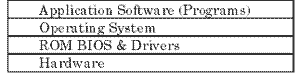
Figure 1 Included in the hardware category are all of the peripherals that connect to the motherboard either directly or by means of various connecting cables. So you should begin to see the extraordinary complexity of the overall system. Let's consider a few case histories. A few years back when Window 95 was being replaced by Windows 98 some computer manufacturers placed a notice for laptop owners on their web sites. This notice stated that laptop owners should not attempt to upgrade their version of Windows by using a "generic" Windows upgrade. Instead they should buy an upgrade version from the laptop manufacturer. |
Why did they do something like this? The
answer lies in the necessity for providing drivers that will work with
the new operating system. Laptop computers have some special driver
requirements related to their LCD screens, video cards, PCMCIA slots and
other hardware. Drivers for these components are generally not included
with a generic OS upgrade. Instead, these are usually provided by the
original hardware manufacturer to the computer manufacturer. In some
cases, the laptop manufacturer decided to not upgrade the drivers. This
meant that the operating system could not be successfully upgraded
unless the user could find the real manufacturer of the individual
components and obtain new drivers from that source. Without the proper
upgraded drivers, the user would have problems with the computer
freezing, the frequent appearance of the dreaded "blue screen of death"
and other seemingly unsolvable problems.
Another case involves adding a larger, faster hard drive to your computer. There have been limits built-in to the ROM BIOS and or the OS that limit the maximum size of hard drive that will be recognized. These limits were 2.1GB, 8.4GB, and 32GB. Even computers that are only a few years old may have a built-in 32GB size limit. If you are running Windows 98, SE, or ME then you don't have an operating system limitation. However, you may have a ROM BIOS limitation. Since most of the motherboards manufactured since 1996 have a "flash" BIOS, you may be able to upgrade the BIOS to accept the larger size drive. However, you must obtain the upgrade from the motherboard manufacturer, not the BIOS manufacturer. As I mentioned earlier, the computer/motherboard manufacturer usually tweaks the BIOS to fit the particular hardware being supplied with the motherboard. In addition, if the drive you are considering is an ATA-100 drive (also known as UDMA mode 5), and then you will need a BIOS upgrade to take advantage of the added data transfer speed of this drive. Only the newest computers have the drivers built-in for these ATA-100 drives. This now leads us to the application level. Applications such as Microsoft Office, Internet Explorer, Corel Draw, etc., reach the hardware level by interacting with the operating system. It is then up to the OS to provide instructions to the hardware via the BIOS. So any software that you purchase or download must work with the OS. Unfortunately, this is not always the case. Back in the days of DOS, programmers always tried to write instructions in their programs to directly control the hardware and bypass the OS. There are still some programs that try to do that and it frequently results in system crashes or, at best, system instability. Such programming may prevent other programs from working correctly. One of our user group members downloaded a program that blocked pop-up ads on the Internet. This program did more than anticipated. It also blocked a number of game programs from running on his computer. Utility programs such as anti-virus software, pose another problem. In some cases they need to bypass the OS to reach a lower level in the BIOS. When you upgrade the OS, the new version may not permit the utility program to work correctly. Windows XP is a great example of this problem. It not only requires upgrades in utility software it requires upgrades in driver software and many applications. Anytime you make a change to the software or hardware on your system you may introduce a new problem. The problems that occur may not be due to Windows. Instead there may be conflicts with some drivers or with other application software. You should always be certain that the software is compatible with your version of the OS and that you have adequate hardware support. As I hope you can see by now, the answer to my initial question is rather complex. But I hope with a better understanding of the relationship of the hardware, ROM BIOS, drivers, OS and applications, you will have a better idea as to where to look for solutions to your own questions. Many manufacturers do provide free upgrades for drivers on their web sites. Such sources or Websites like *Dr. Lewis is a former University and Medical School professor. He has more than 20 years of experience working with personal computer hardware and software. He can be reached via e-mail at brian_klewis@hotmail.com or voice mail at 941-925-3047. Copyright 2002. This article is from the February 2002 issue of the Sarasota PC Monitor, the official monthly publication of the Sarasota Personal Computer Users Group, Inc., P.O. Box 15889, Sarasota, FL 34277-1889. |
|
Number 235 - December 2002
|
|