 Number 240 - May 2003 |





|
| Using Remote Assistance | |
|
by Vinny La Bash, vlabash@home.com Sarasota Personal Computer Users Group, Inc. | |
|
Remote Assistance provides
a way for you to get help when you run into problems with your
computer. Alternately, you can be the one to use Remote Assistance to
directly help your friends and family members. Imagine that Aunt Tillie
asks you for help in solving a problem on her PC. Instead of trying to
talk her through a fix by phone, you can connect your PCs across the
Internet to accurately determine the problem. You can then offer live
guidance via a builtin text chat. If that's still not enough, you can
take over her PC and fix the problem.
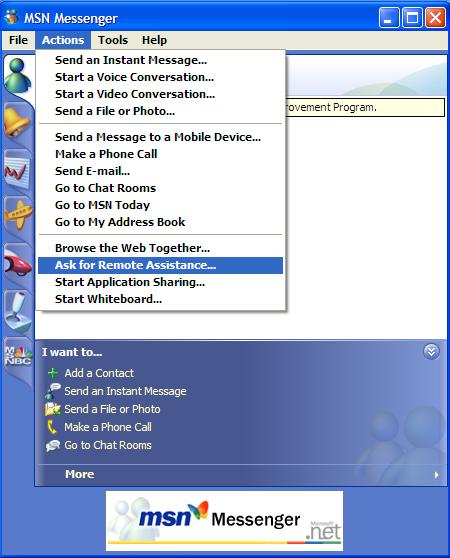
There are three ways to use Remote Assistance. The fastest is with Windows Messenger. You can also initiate Remote Assistance sessions by Email. If you use a Web based Email service such as MSN Hotmail, you can fill out a form and save it as a file to attach to an E-mail. To use Remote Assistance, you need two computers running Microsoft Windows XP Professional or Windows XP Home Edition. The computer receiving assistance and the computer providing assistance must both run Windows XP. Both computers must be connected via a network or the Internet. Windows Messenger must be installed on both computers. For this example, we will assume you are seeking help from a friend. To send a Remote Assistance request via instant messaging: When your contact agrees to the Remote Assistance session, he or she will start the process of temporarily |
controlling your computer. A dialog box will
appear asking you to confirm permission to take over your computer.
Click Yes to continue. It's important to understand that at all times
you keep control over the Remote Assistance session itself. You can end
the session anytime by pressing the ESC key.
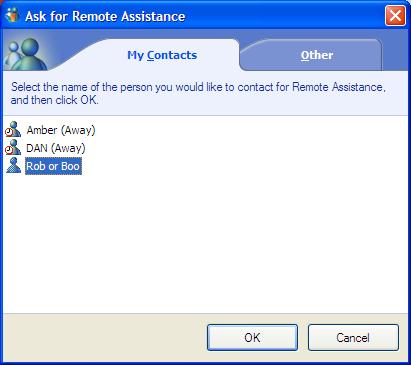
Your contact now receives an instant message giving permission, and he or she performs the following steps to accept your invitation, take control of your computer, and begin helping: This begins the Remote Assistance session. Your contact will see two Start menu buttons. One button controls your contact's computer. The other button controls your computer. Your contact will now click the Take Control button. At this point, you now confirm your permission for your contact to take control. Note: This sounds a lot more complicated than it really is. The dialog boxes do an excellent job of taking both parties through the process. Also be aware that one or both of you may have to shut down your firewall during the Remote Assistance session. Remote Assistance allows a trusted friend or colleague to log into your system, view what you see on your computer screen, and chat online with you in real time through the use of Windows Messenger about what you both see on your computer. In addition, you can be talking over the telephone with them about what is seen on your system. If the task is "too difficult" to walk you through the problem, your friend can "take over" the session and complete the task remotely. Copyright 2003. This article is from the April 2003 issue of the Sarasota PC Monitor, the official monthly publication of the Sarasota Personal Computer Users Group, Inc., P.O. Box 15889, Sarasota, FL 342771889. Permission to reprint is granted only to other nonprofit computer user groups, provided proper credit is given to the author and our publication. |
|
Number 240 - May 2003
|
|