 Number 244 - September 2003 |




|
| Covering Your Tracks in XP | |
| by Bob Thomson, Tacoma Open Group | |
|
In Windows 98 and ME, if
you click your mouse arrow on Start on a Windows screen, one of the
choices offered is Documents. Click on Documents, and a list of files
most recently accessed is displayed. Clicking on any one of them will
open that file if it is still available on your hard disk. This may or
may not be fine depending on how sensitive you are about others looking
at your browsing habits or having access to certain sensitive files
(like your checking account).
In past issues, (Dec 2002, for example) I showed you how to get rid of the record of files or documents that you had recently accessed. With Windows 98 and ME the procedure was: 1. Successively click Start/ Settings/ Taskbar and Start Menu. 2. On the Taskbar and Start Menu screen, click the Advanced tab. 3. On the Advanced screen click Clear and the stored list will be deleted. 4. You can check that by again clicking Start/ Documents. will be empty. Note: Unless you have password-controlled your files, while the list of filenames is gone, the files are still available to another user if he/she can find them. There are password-controlled file managers which can hide your files from prying eyes but that is the subject of another article. Privacy software which I have used is Magic Folders. 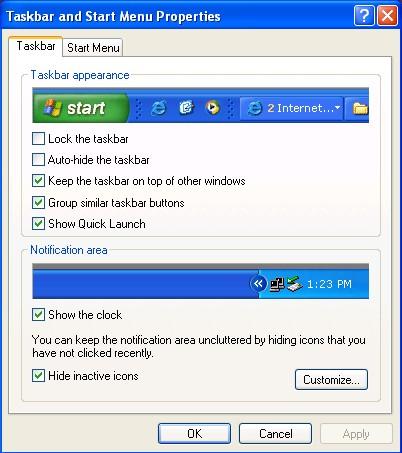
I recently loaded XP Pro on my computer and was surprised to find that the above procedure didn't seem to work. After a few days of frustration I discovered that it is still there but the screen presentations and terminology are changed. When running Windows XP the procedure to delete the list of recently accessed Documents or Files is as follows: 1. Click Start/ Settings/ Taskbar and Start Menu 2. The Taskbar and StartMenu Properties screen will come up with the Taskbar and Start Menu tabs showing at the top and the Taskbar screen displayed. To display the Start Menu screen, click on the Start Menu tab. See Figure 1. |
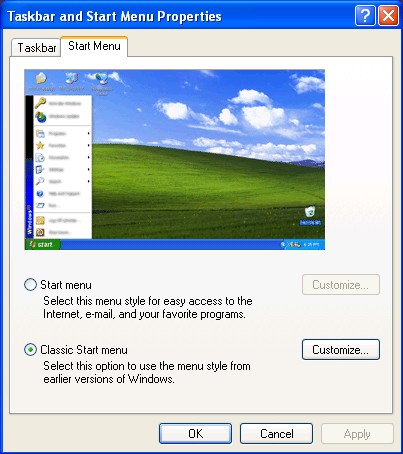
3. When the Start Menu screen is displayed (above) click on Customize. 4. The Customize Classic Start Menu screen will display several "custom" choices. About in the middle is a Clear button. Click on Clear and the list of Documents or Files will be cleared. 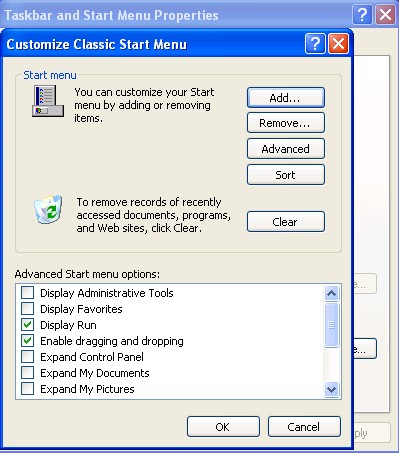
5. After clearing the windows, you can check that this is so by clicking Start/ Documents and will see no documents of files displayed. |
|
Number 244 - September 2003
|
|