 Number 246 - November 2003 |





|
| Help! Help! Help! | |
|
by Mick Topping, Springfield Mo. Computer Clubs, Feb-02 From the October 2003 issue of the I/O Port Newsletter | |
|
This is an article for
beginners. That is, it is mostly for beginners, but maybe human-nature
being what it is, some of us intermediate users need to be reminded
about how to ask your computer for help. It is stereotypical that "guys"
don't look at the manual except as a last resort, just like they don't
ask directions when lost. But the help tools on your computer have a big
advantage, in that no one will know you have used it, so some face is
saved. So, that is what this article is about--using the built-in help
features of your PC. This is not a step-by-step instruction, not enough
time, space, and smarts--this is encouragement to try it yourself.
Don't get me wrong, there is nothing immoral with the "poke-and-hope" method of computer use, I do a lot of it myself, and of course, many more advanced users greatly appreciate a chance to display their skills and help you out personally. Sometimes, there is no choice other than getting outside assistance, because the beginner may just not have the language to describe what he wants to the relatively stupid help program. And the help program is truly STUPID! It will present you with information, but frequently, it is either information you don't want, or that you can't understand (that language barrier again)-help programs are written by programmers after all, and they have little experience with English and users in general. But proper etiquette is to try to find out for yourself before asking. Which programs have help? You will rarely use a Windows application that does not have some help built in. The help files may be limited, and of minimal use, but frequently they are a virtual textbook on your application. Internet applications, such as the browser and the Email client (and many other recent programs) will not only have the built-in help, but will have an internet interface to the vendor company help database. MS Office applications (Excel, Word, PowerPoint etc) have a specialized little dancing icon (called the Office assistant) that makes some beginners feel more comfortable using the help feature, and makes most experienced users nauseous. But almost all applications will have medium sized built-in help document that can be accessed with similar means. The document usually contains an index, a table-of-contents (ToC), and a word-search function. It may also contain a bookmark function to allow quick return to favorite pages. The index and ToC work just as their paper book counterparts. How do you get to help? Like every other task in Windows, there are several ways to get help started. For most programs, the menu contains a help item, (as shown here) that causes a list of help choices to drop down. Probably the least helpful, but nice to know is the about choice--(1) on the menu. This selection displays the program's version number, and frequently other reference material, very useful when contacting technical support. Usually found at the bottom of the list. 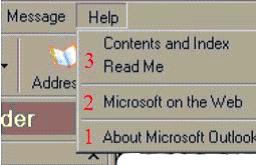
In the middle of the help drop-down list is a variety of choices (2) - perhaps an access to a web resident help function, perhaps a "what's this" button (click debugging tool in this area, and Microsoft Office applications may have a special, transitional help tool to aid in migration from other vendor's programs. Features in this middle area can be any sort of useful tools, MS Office puts their incredibly irritating Office Assistant here - try it you may find it useful. (Gag, retch, barf...) 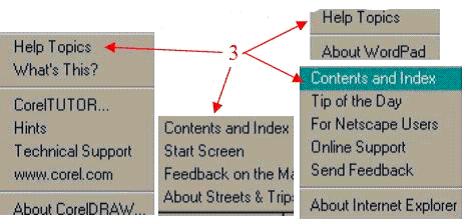
But the nucleus of the help system, usually the top selection (3) goes under a variety of names. The most common are labels like Program help, or Help Topics, or Contents and Index, or Help and Support. Actually, anything that the program author decides is descriptive can be used to label the main help entry point. Here are some samples. |
What can you expect from Help?
Well, don't plan on Help being your only source of knowledge on a program. It is usually the case that programs are written in a great hurry. The software marketplace is a cruel taskmaster, and usually as soon as a program is finished, it is hurriedly deployed. Something like "All right, we are done!--oops, hold it, we gotta stick some help stuff on there--OK, there, she's ready to go". Well maybe it is not quite that bad, most Help files contain a lot of information. Help for Windows itself is found using the Start then Help or Help and Support buttons, depending on version. 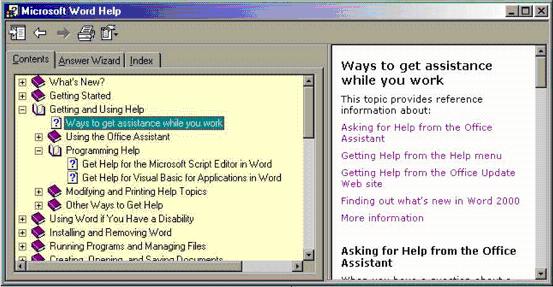
Here is a sample help tool, from Word 2000, showing basic functions. Shown, is the Contents list--the Index (self explanatory) and the Answer Wizard (a search tool which will take literal questions as input) are available by clicking page-tabs above the left pane. The table of contents display has a hierarchy of chapters, where sub-chapters or topic titles can be seen by clicking the "+" beside the little book. The icons at the top of the frame include ways to change the display of the help pane, print a topic, and go back to a topic just viewed. Unfortunately, Word Help is one of those that do not have a book-marking function. Note that there is no help-on-help button--Bad Microsoft! Well, there is some help-on-help several chapters into the table of contents--fairly common trick of lazy programmers. If you are having trouble using the Help feature, look down the Contents list, to check for advice on how to use help. Large applications such as Excel and Word will have Help that is equal to a several hundred-page book, and newer versions of the program have imbedded "tools" (buttons) that will "demonstrate" (go to that feature of the program and simulate running it) how to accomplish certain actions. Well-written Help tools will always have many hot links that will quickly jump to internal and external references, or similar topics. Unfortunately, all applications have somewhat different help environments. Some have a simple two-pane window, one containing ToC, or search result topics, and the other containing readable text and graphics. Other applications will have no useful help visible until the topic is selected, at which time the ToC and Search window vanishes. It can be re-entered, but not too conveniently. This makes it impossible to give a step-by-step instruction help, you will have to work your way through it. But while it can be somewhat confusing the first time, there is no damage that will result from pressing the wrong button on the help menu. And it is well worth the effort to experiment. If you have one of the new High-Rez displays, you may find the fonts tiny, and no obvious way to adjust them, but many newer help programs are based on the web-browser, and fonts will respond to the same Shortcuts to help Help can virtually always be obtained by pressing the Favorites, Printing, etc. Most applications help tools have no way to mark areas for future reference, but at least Windows does. It is very worthwhile to skim down the list of top-level chapters, picking areas that look interesting, expanding those, and book-marking the topics in windows that you are interested in. Then when you get a slow minute, pop open help, look in your favorites, and learn how things work. Printing is something you should be careful with. Help can be so enormous, that printing can be very expensive. My recommendation is to print only those recovery tools that you may not be able to get on line, or lengthy step-by-step processes. And finally, the main and most important suggestion, is to practice it. Open an application, or just Windows, and help yourself.... - Mick |
|
Number 246 - November 2003
|
|