 Number 258 - November 2004 |





|
| Notify The Notification Area | |
|
by Vinny La Bash, vlabash@home.com Sarasota Personal Computer Users Group, Inc. , October 2004 | |
|
Most people called it the
System Tray when it first appeared in Windows 95, but this has never
been correct. When Windows 95 was still in development, the taskbar
originally wasn't a taskbar. It was a folder window docked at the bottom
of the screen. You could drag and drop things into and out of it. It
worked something like the organizer tray in the top drawer of your desk.
That's where the name "tray" came from. You could make a good case that
this was taking the desktop metaphor a bit too far.
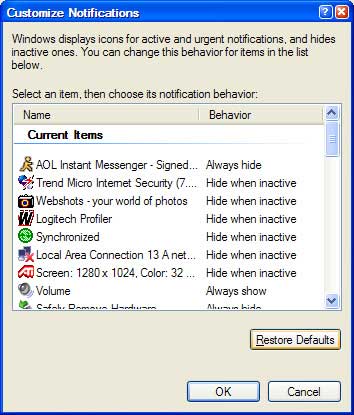
The notification area of the taskbar is where you usually see the current time displayed, along with other miniature icons that alert (notify) you when certain events occur, such as when you receive e-mail or you open Task Manager. Windows displays a notification icon when such an event occurs. You can ignore this if you like. After a short time, Windows puts the icon in the background to reduce clutter. You can access any icons that have been placed in the background by clicking a chevron-shaped button in the notification area. Not only has the name been corrected, but the new area provides more meaningful notifications. It also has a mechanism that reduces untidiness on the taskbar. Icons that are inactive become hidden. Periodically the system informs you that there are inactive icons, and you can modify this behavior with customization settings, or you can disable this feature altogether. To customize the Notification area, right-click the Taskbar and select Properties. Under the Notification area caption on the Taskbar tab you can select to show or hide the clock. If you like, you can also show or hide inactive icons. The Customize button gives you control over the behavior of individual icons. There are three options to choose from. You can always hide an icon, always display it, or hide it only when it's inactive. If you have installed Service Pack 2 and have not messed with the defaults, eventually you will see Notification Balloons pop up from time to time informing you that a critical update is ready to install. That's not the only thing you'll get, but we don't want to get bogged down with inconsequential details. If notification balloons annoy you, there is a way to disable them. |
 That takes care of Notification Balloons, but what about the rest of the area? If you would prefer to disable the Notification Area entirely, you can do that too. One good reason to do this is if more than one person uses the machine, and you don't want them to have access to the programs the notification icons represent. To hide the notification area: After you restart Windows, only the time and date will still be displayed. If you change your mind, alter the value of NoTrayItemsDisplay to 0 or simply delete it. : |
|
Number 258 - November 2004
|
|