 Number 272 - January 2006 |





|
| Neat Excel Tip - AutoFill | |
|
Submitted by William Lomax Cajun Clickers Computer News December 2004 Source: Ms Office 101 and Office Tip of the Day from World Start 8/24/04 | |
|
Click, Click - Auto Fill It OK, so you've got a long column of data in MS Excel. and ...in an adjacent column you're going to apply the same formula to each and every item in the list. What do you do? For many of us we simply write the formula in the first cell and then use either copy/paste or the fill handle to drag the formula down to the bottom, matching the data list's size. 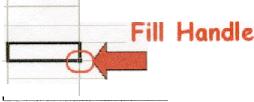
Figure 1 - Fill Handle Good plan, works well. But, what about the really long lists?Ever find that you're zooming back and forth trying to let go of the fill handle at the exact bottom of the list? How about a quick double-click way to get that formula immediately copied down the entire length of the data? That's right, no zooming up and down the list while you patiently hold the fill handle with the mouse! Next time, instead of the usual click and drag try a quick double-click on the fill handle. Poof! You should now find your formula neatly copied down the entire length of the data (in other words, the column was Auto Filled). It couldn't be easier! Here's a bonus for users of newer Excel versions (sorry, couldn't find this one in Office 2000) |
When the Auto Fill is complete you'll get a little button that looks like this at the bottom of the new data. 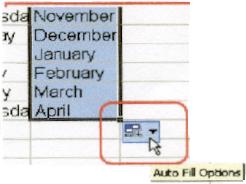
Figure 2 - Auto Fill Options If you click this button you'll receive your Auto Fill Options--they vary with data type so at first you'll have to look them over to see yom options This button will be available until you move on and start another action (you know, type a piece of data, start formatting data, whatever) a new action puts that little button away for you. In addition, I have a couple of side notes for everyone: Yeah--do a little "happy dance" in your chair--this one is so fast it's almost like doing nothing while still getting it all done! |
|
Number 272 - January 2006
|
|