 Number 281 - October 2006 |





|
| How USB Ports Work | |
| by Marshall Brain | |
|
Just about any computer that you buy today comes with one or more Universal Serial Bus connectors on the back. These USB connectors let you attach everything from mice to printers to your computer quickly and easily. The operating system supports USB as well, so the installation of the device drivers is quick and easy, too. Compared to other ways of connecting devices to your computer (including parallel ports, serial ports and special cards that you install inside the computer's case), USB devices are incredibly simple! In this article, we will look at USB ports from both a user and a technical standpoint. You will learn why the USB system is so flexible and how it is able to support so many devices so easily -- it's truly an amazing system! Anyone who has been around computers for more than two or three years knows the problem that the Universal Serial Bus is trying to solve -- in the past, connecting devices to computers has been a real headache!
The goal of USB is to end all of these headaches. The Universal Serial Bus gives you a single, standardized, easy-to-use way to connect up to 127 devices to a computer. Just about every peripheral made now comes in a USB version. A sample list of USB devices that you can buy today includes:
Connecting a USB device to a computer is simple--you find the USB connector on the back of your machine and plug the USB connector into it. 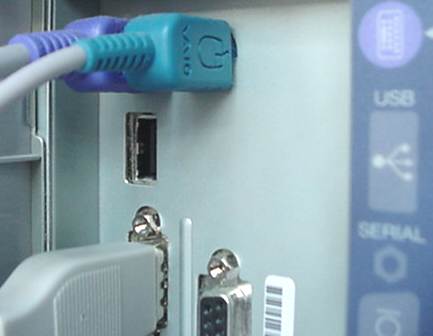
The rectangular socket is a typical USB socket on the back of a PC. 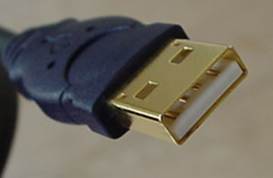
A typical USB connector, called an "A" connection If it is a new device, the operating system auto-detects it and asks for the driver disk. If the device has already been installed, the computer activates it and starts talking to it. USB devices can be connected and disconnected at any time. Many USB devices come with their own built-in cable, and the cable has an "A" connection on it. If not, then the device has a socket on it that accepts a USB "B" connector. 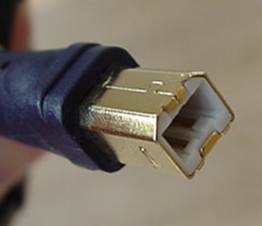
A typical "B" connection The USB standard uses "A" and "B" connectors to avoid confusion:
By using different connectors on the upstream and downstream end, it is impossible to ever get confused--if you connect any USB cable's "B" connector into a device, you know that it will work. Similarly, you can plug any "A" connector into any "A" socket and know that it will work. Most computers that you buy today come with one or two USB sockets. With so many USB devices on the market today, you easily run out of sockets very quickly. For example, on the computer that I am typing on right now, I have a USB printer, a USB scanner, a USB Webcam and a USB network connection. My computer has only one USB connector on it, so the obvious question is, "How do you hook up all the devices?" The easy solution to the problem is to buy an inexpensive USB hub. The USB standard supports up to 127 devices, and USB hubs are a part of the standard. |
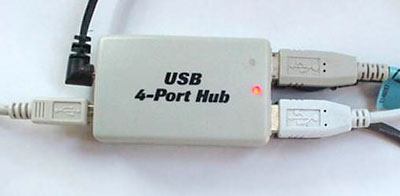
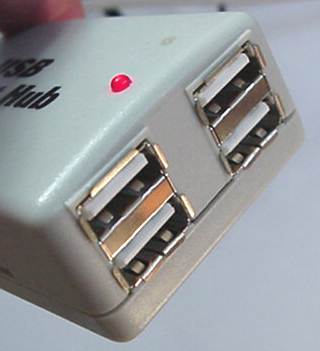
A typical USB four-port hub accepts 4 "A" connections. A hub typically has four new ports, but may have many more. You plug the hub into your computer, and then plug your devices (or other hubs) into the hub. By chaining hubs together, you can build up dozens of available USB ports on a single computer. Hubs can be powered or unpowered. As you will see on the next page, the USB standard allows for devices to draw their power from their USB connection. Obviously, a high-power device like a printer or scanner will have its own power supply, but low-power devices like mice and digital cameras get their power from the bus in order to simplify them. The power (up to 500 milliamps at 5 volts) comes from the computer. If you have lots of self-powered devices (like printers and scanners), then your hub does not need to be powered -- none of the devices connecting to the hub needs additional power, so the computer can handle it. If you have lots of unpowered devices like mice and cameras, you probably need a powered hub. The hub has its own transformer The USB Process When the host powers up, it queries all of the devices connected to the bus and assigns each one an address. This process is called enumeration -- devices are also enumerated when they connect to the bus. The host also finds out from each device what type of data transfer it wishes to perform:
The host can also send commands or query parameters with control packets. As devices are enumerated, the host is keeping track of the total bandwidth that all of the isochronous and interrupt devices are requesting. They can consume up to 90 percent of the 480 Mbps of bandwidth that is available. After 90 percent is used up, the host denies access to any other isochronous or interrupt devices. Control packets and packets for bulk transfers use any bandwidth left over (at least 10 percent). The Universal Serial Bus divides the available bandwidth into frames, and the host controls the frames. Frames contain 1,500 bytes, and a new frame starts every millisecond. During a frame, isochronous and interrupt devices get a slot so they are guaranteed the bandwidth they need. Bulk and control transfers use whatever space is left. The technical links at the end of the article contain lots of detail if you would like to learn more. USB Features The Universal Serial Bus has the following features:
The devices connected to a USB port rely on the USB cable to carry power and data. 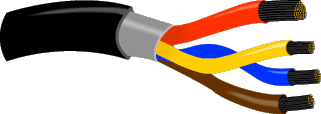
Inside a USB cable: There are two wires for power -- +5 volts (red) and ground (brown) -- and a twisted pair (yellow and blue) to carry the data. The cable is also shielded. USB 2.0 The standard for USB version 2.0 was released in April 2000 and serves as an upgrade for USB 1.1. USB 2.0 (High-speed USB) provides additional bandwidth for multimedia and storage applications and has a data transmission speed 40 times faster than USB 1.1. To allow a smooth transition for both consumers and manufacturers, USB 2.0 has full forward and backward compatibility with original USB devices and works with cables and connectors made for original USB, too. Supporting three speed modes (1.5, 12 and 480 megabits per second), USB 2.0 supports low-bandwidth devices such as keyboards and mice, as well as high-bandwidth ones like high-resolution Webcams, scanners, printers and high-capacity storage systems. The deployment of USB 2.0 has allowed PC industry leaders to forge ahead with the development of next-generation PC peripherals to complement existing high-performance PCs. The transmission speed of USB 2.0 also facilitates the development of next-generation PCs and applications. In addition to improving functionality and encouraging innovation, USB 2.0 increases the productivity of user applications and allows the user to run multiple PC applications at once or several high-performance peripherals simultaneously. |
|
Number 281 - October 2006
|
|