 Number 290 - July 2007 |





|
| Windows Vista Power Management | |
|
by Vinny La Bash, Sarasota Personal Computer Users Group, Inc. | |
|
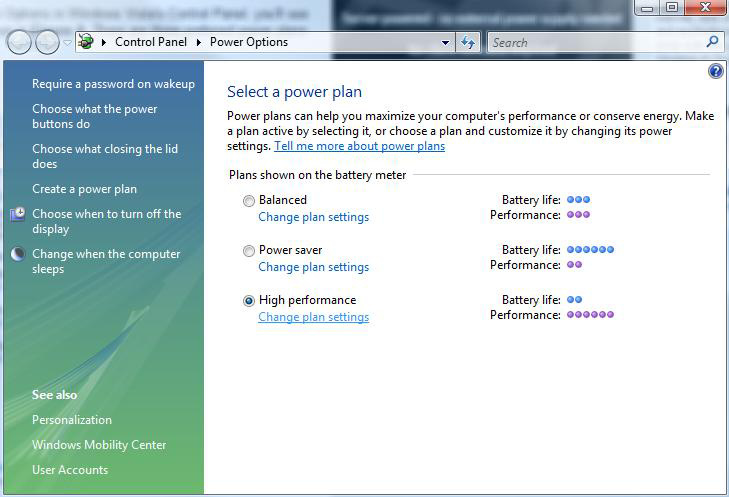
Those of us who drive laptops are usually more aware of power management than the desktop jockeys. When you're running on battery power only, you want to have your laptop running as efficiently as possible. In Vista, you can optimize settings to conserve energy, go for flat out performance or achieve some kind of sensible balance between the two. Activating power management is simple, and you have two paths to take you there. If you like living in the past and have set Control Panel to Classic View, simply open the Control Panel and then open the Power Options icon. If you're more up-to-date, open Control Panel, then System and Maintenance, then select Power Options. Either way you're looking at very similar screens. Vista gives you a web-like interface that's easier to use than the usual tabbed dialog boxes in XP. You have three power plans to work with, and if your PC is a desktop the right column will read "Energy Savings". You don't have any head scratching involved to determine what each selection controls. The first selection, Balanced power provides total performance when you need it while saving power during idle periods. The Power saver option reduces system performance to give laptop users maximum battery life. High performance does exactly what it says, but don't expect to be able to watch the Lord of the Rings trilogy on your laptop on battery power. 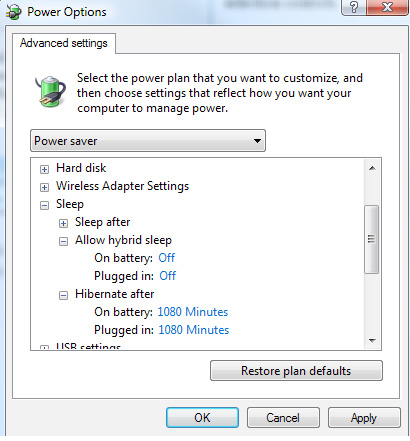
Examine the dialog box and you will notice that each of the power plans has a Change plan settings link. Any of these will take you to another dialog box where you can change the default settings. The defaults are reasonable and make sense. Change them if you must, but not because you can. You can refine your setting further by selecting the Change Advanced Power Settings link. The number of power setting adjustments you can make to your computer in this dialog box is nothing short of mind boggling. You can regulate power consumption for USB devices, hard disks, displays, and even wireless devices. It's easy to get carried away. |
Scroll down to the Sleep option, open it and you will see a new Vista option called Hybrid sleep mode. This mode combines the power savings of the Hibernate mode with the revive speed of the Standby mode. In practice you get a coma-like hibernation state combined with a jump start after pressing the spacebar. The Sleep after and Hibernate after settings are nothing exciting and are very similar to the XP options that allow you to specify how much inactivity time you will allow before telling the system to take a nap. At the bottom left corner of your screen is a new orb graphic that replaces the XP Start button. Left-click on the orb and inspect the bottom of the Start menu. By clicking on the rectangular orange shut-down button, you can quickly induce Hybrid Sleep mode. Keep in mind that Hybrid Sleep is not a true shut down. The best way to completely shut down the computer, aside from pulling the power cord, is to access the Shut Down from the fly out menu. Vista provides an intelligently designed method of regulating power consumption by offering a balanced variety of methods with a web style interface to help you select and configure various power plans. Use them wisely. Copyright 2007. This article is from the June 2007 issue of the Sarasota PC Monitor, the official monthly publication of the Sarasota Personal Computer Users Group, Inc., P.O. Box 15889, Sarasota, FL 34277-1889. Permission to reprint is granted only to other non-profit computer user groups, provided proper credit is given to the author and our publication. |
|
Number 290 - July 2007
|
|